
How to open STL file: viewers, slicers and what to check before printing
How to open STL file models, in short: use a 3D viewer built into the operating system, a slicer that prepares prints, or a viewer that runs in the browser. An STL file stores only the outer surface of an object as triangles, without colour or units, so after opening it, check its size, scale and closed surface before anything goes to a printer.
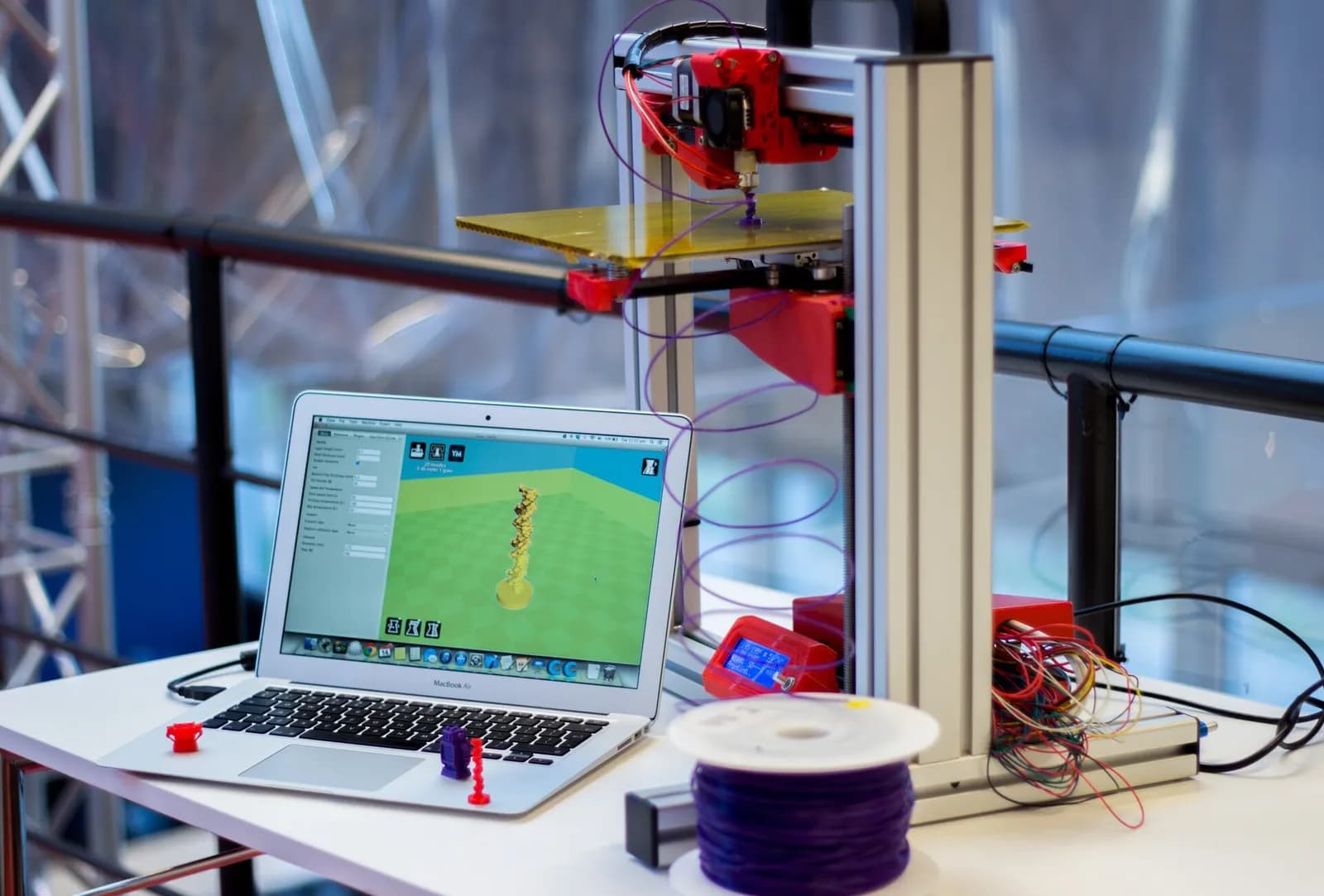
STL is the format a slicer reads to prepare a 3D print, and many programs that handle 3D models can open it. Opening the file is the easy part. Knowing what the file cannot tell you is what saves a failed print.
Key ideas
- An STL file is a mesh of triangles that describes only the surface of an object.
- The format stores no colour, no texture and no units, so the same file can open as 20 mm or 20 inches.
- Three kinds of tools open it: system viewers for a quick look, slicers for printing, browser viewers for checking and sharing.
- Before printing, check size, units, scale and whether the surface is closed, with no holes or flipped faces.
What an STL file is
STL was developed around 1987 for the first commercial stereolithography printers. The file describes a raw triangulated surface: each triangle is three corner points plus a normal, a short vector that points outward and tells the inside of the object from the outside. Binary STL, the more compact form, starts with an 80-byte header and a count of triangles, then stores 50 bytes per triangle. A text form also exists and is larger.
What the format leaves out matters as much. STL describes only surface geometry: no colour or texture in the core format, no materials and no scale information. The units are arbitrary, which is why many programs ask whether a file is in millimetres or inches.
Three ways to open one
A system viewer is the quickest look. Many desktop systems ship a basic 3D viewer or file preview that shows an STL when you double-click it or select it and press the preview key. It is good for checking that the file is the right object, and little else.
A slicer is the program that prepares a print. It cuts the model into thin layers, can add supports under overhangs and writes G-code, the list of moves a specific printer follows. Open the STL in the slicer you plan to print with when the goal is a physical part.
A browser viewer needs no install and works on any computer. The better ones let you measure, cut through the model and look at parts separately, which is what a check before printing needs.
What to check before printing
Size and units first. Measure one known dimension: if a part designed as 25.4 mm reads 1, it was exported in inches and needs scaling by 25.4. A model that looks tiny or huge in the slicer is almost always a units problem, not a broken file.
Then the mesh. A printable STL must be closed and connected: no holes, no reversed normals. Errors that CAD exports often produce include holes, flipped face normals, self-intersections and non-manifold edges, and the format itself does not prevent any of them. A slicer may fail or give unpredictable results on a faulty mesh, so repair it first. Last, look at thin walls and overhangs by cutting through the model.
Open and check an STL in the browser
VITON13 LAB, part of VITON13 SCHOOL, is a 3D table in the browser that opens GLB, single-file GLTF, OBJ and STL models up to 100 MB per file. It explodes a model into parts, hides parts, cuts with a plane and measures with a ruler. It can also build parts by size, such as a box, shaft, tube, gear by module and number of teeth, spring or bolt, and exports a ZIP project, GLB, STL or a PNG snapshot. It is free with a VITON ID, and a draft table works without signing in.
In everyday language
An STL file is like a paper shell of an object with no ruler printed on it. The shape is all there, but you have to decide how big it is and check there are no tears before you fill it.
Try it yourself
In the browser 3D table linked below, open a draft table without signing in, drop an STL file on it and measure the longest side with the ruler. Then cut the model with a plane through its thickest part.
Expected result
The ruler shows a length you can compare with the size the designer intended, and the cut shows the walls and any hollow areas inside.
Check your answer: The ruler shows 3.15 for a part that should be about 80 mm long. What happened, and what is the fix?
The file was exported in inches, since 3.15 inches is about 80 mm. Scale the model by 25.4 before printing; the geometry itself is fine because STL simply has no units.
Questions
Why does my STL have no colour?
The core STL format does not store colour or texture. Some programs use a spare field in binary files for colour, but it is not part of the standard. For a coloured model, use a format such as GLB or OBJ with its material file.
Can I edit an STL file after opening it?
You can scale, move, cut and repair the mesh, but STL holds triangles, not the design history. Large shape changes are easier in the original CAD model, exported again as a new STL.
Open the file, measure one known dimension, then look for holes before you slice. A draft table in VITON13 LAB at VITON13 SCHOOL does all three in the browser without signing in.
Sources and further reading
- STL (file format), Wikipedia ↗Sources checked:
- 3D printing: Printing (STL error checking and slicing), Wikipedia ↗Sources checked:
- STL format specification, Kaitai Struct format gallery ↗Sources checked: